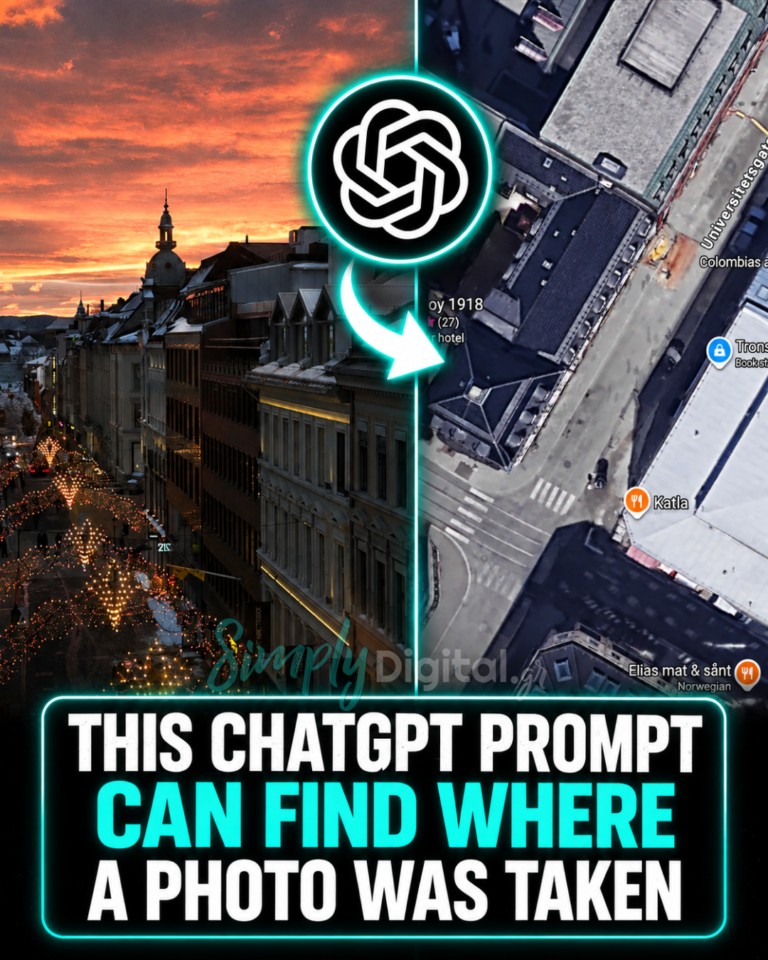
This ChatGPT prompt can find where this photo was taken
AI Tools & Design
How to Design Anything on Claude in 5 Minutes
No design software. No coding skills. No waiting. Here is the complete, step-by-step guide to using Claude as your personal design tool — and getting polished results in minutes.
Before You Start: What Claude Can Actually Design
Most people think of Claude as a writing assistant. But it is also a fully capable design tool — one that renders live, interactive visuals directly inside the chat window. No exports, no Figma, no browser setup required.
Claude creates designs in four main formats, each suited to a different use case:
| Format | Best For |
|---|---|
| HTML / CSS | Landing pages, cards, layouts, blog headers, posters |
| React (JSX) | Interactive components, dashboards, apps with toggles or tabs |
| SVG | Icons, illustrations, infographics, logo concepts |
| Mermaid | Diagrams, flowcharts, system maps, user journey maps |
If you are unsure which format to use, do not worry. Just describe what you want in plain language and Claude will choose the right output automatically.
The 5-Minute Design Process
Step 01 — 30 seconds
Know Your Output Type
Before you type anything, spend 30 seconds deciding what kind of thing you are building. This single choice shapes the quality of everything that follows.
Building a page or layout? Ask for HTML.
Need interactivity — buttons, sliders, tabs? Ask for React.
Creating a graphic or illustration? Ask for SVG.
Mapping a process or system? Ask for Mermaid.
Step 02 — 1 minute
Write a Detailed Prompt
This is the most important step. A vague prompt produces a generic result. A detailed prompt produces something you will actually want to use. Think of it as briefing a designer: the more context you give, the better the output.
Use this simple formula when writing your prompt:
[What it is] + [Who it's for] + [Visual style] + [Key elements] + [Colors and fonts]Here is the difference in practice:
“Make me a website”
“Design a modern SaaS landing page for an AI writing tool aimed at content creators. Use a dark background (#0f0f0f) with neon green accents (#00ff88). Include a hero section with a headline and CTA button, three feature cards with icons, and a pricing section with three tiers. Clean and minimal style, Playfair Display for headings.”
More examples of prompts that work well:
“Create a mobile app UI for a fitness tracker — dark mode, card-based layout, progress rings, orange accent color.”
“Design an infographic showing the five stages of AI adoption for businesses — modern flat style, blue and purple palette.”
“Build an interactive pricing calculator with sliders for React.”
“Make a Notion-style dashboard with a sidebar, stats cards, and a recent activity feed.”
Step 03 — 30 seconds
Submit and Watch It Render
Hit enter. Claude generates the code and immediately renders a live visual Artifact in the panel to the right of your chat. You do not need to open a browser, paste anything, or install a single tool. The design appears in real time, often within 10 to 20 seconds.
Pro tip: If the design does not appear automatically, look for the Artifact panel toggle at the top right of your Claude window and make sure it is enabled.
Step 04 — 2 minutes
Iterate with Follow-Up Prompts
Here is where Claude truly earns its place in your workflow. You do not re-design from scratch — you refine with plain English, one instruction at a time. Each follow-up takes around 10 to 20 seconds to re-render, meaning you can cycle through five or six revisions in under two minutes.
To change colors:
“Change the background to midnight blue and make the buttons gradient from purple to pink.”
To adjust layout:
“Move the pricing section above the features, and make the hero headline larger.”
To swap content:
“Replace the placeholder text with real copy for a tool called WriteFlow.”
To upgrade the style:
“Make it feel more premium — add subtle shadows, rounded corners, and a glassmorphism card effect.”
To add interactivity:
“Add a hover effect on the cards and make the CTA button pulse gently.”
To make it responsive:
“Make this mobile-friendly with a hamburger menu on small screens.”
Step 05 — 1 minute
Export or Copy the Code
Once you are happy with the result, you have several options:
Copy the code — click the code icon in the Artifact panel to view and copy the raw HTML, React, or SVG.
Download as a file — use the download button on the Artifact to save it directly to your computer.
Screenshot it — perfect for social posts, slide decks, or client presentations.
Paste into your project — the generated code works directly in any standard web project.
Power Tips for Better Results
Reference a Design Style
You can direct Claude toward a specific visual aesthetic by naming a reference. Try phrases like “in the style of Linear.app” or “make it look like Stripe’s homepage.” Claude understands a wide range of design languages and will adapt accordingly.
Always Provide Hex Codes for Colors
If brand accuracy matters, never say “blue” when you can say #1a56db. Hex codes eliminate guesswork and ensure the output matches your actual brand palette every single time.
Specify Exact Dimensions When Needed
For specific deliverables, state the dimensions upfront. For example: “Design this as a 1200×630px Open Graph image” or “Make a 1080×1920 Instagram Story layout.” Claude will size the canvas accordingly.
Ask for Components, Not Full Pages
When you only need one piece — a pricing card, a navbar, a testimonial block — ask for just that component. Smaller scopes render faster and give you cleaner, more reusable code.
Use “Keep Everything the Same But…”
This is one of the most useful phrases in your iteration toolkit. It tells Claude exactly what to preserve while changing only what you specify. Without it, Claude may interpret your follow-up as permission to redesign broadly.
Describe Your Audience
Adding audience context shapes the visual complexity and tone of the output. “This is for non-technical users aged 45 to 60” produces something very different from “this is for startup founders in tech.”
Quickstart Cheat Sheet
The 5-Step Process at a Glance
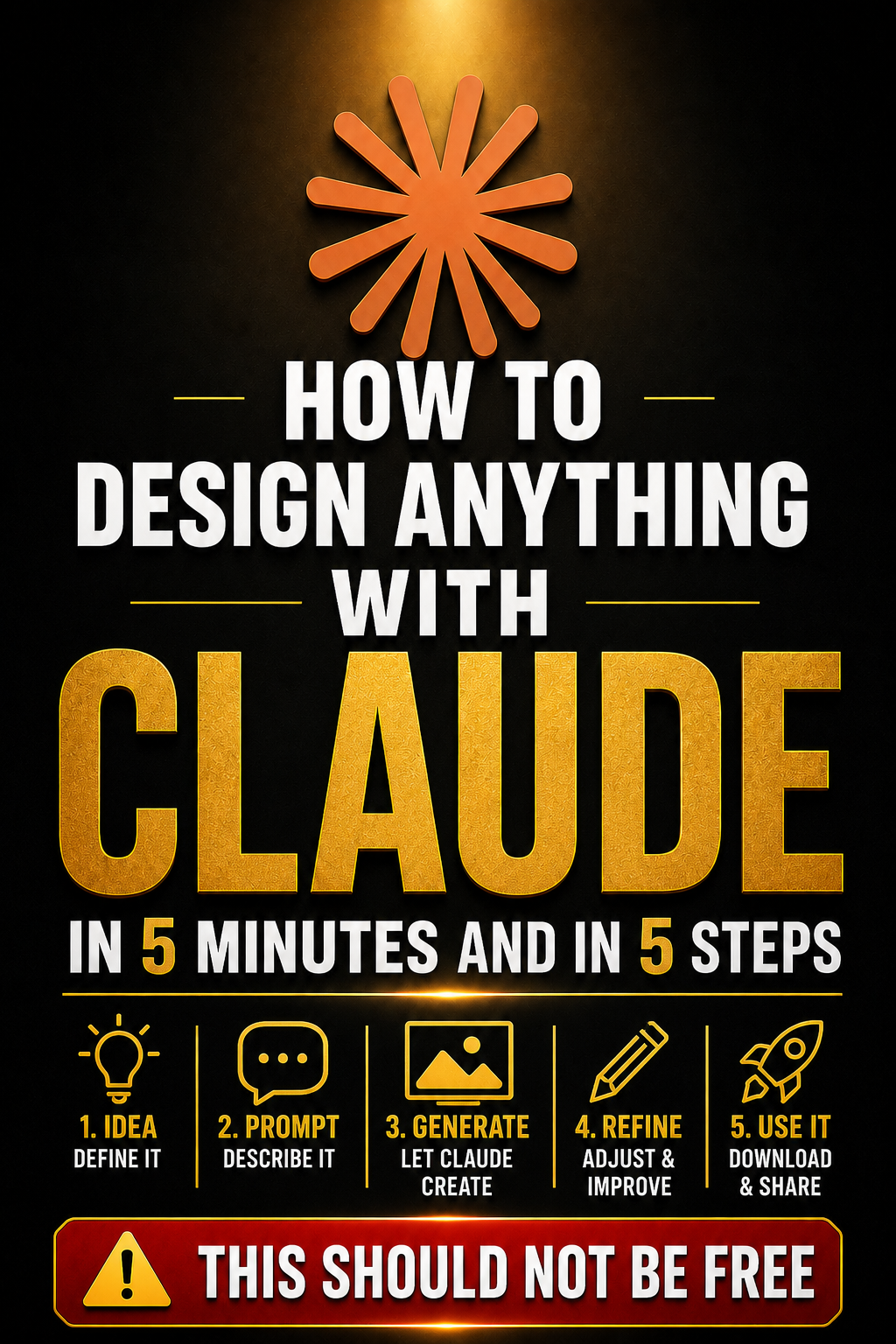
- Pick your format — HTML, React, SVG, or Mermaid
- Write a rich prompt — What + Who + Style + Elements + Colors
- Let it render — the Artifact appears on the right in seconds
- Refine in plain English — iterate fast with follow-up prompts
- Copy or download the code — use it anywhere you need
Try It Right Now
The best way to understand what Claude can do is to experience it yourself. Paste the prompt below directly into Claude and watch a live design appear within seconds — then start tweaking.
“Design a modern landing page hero section for a digital marketing agency called SimplyDigital. Dark background, bold white headline, a short subtitle, a bright CTA button, and a subtle animated gradient in the background. Clean and professional.”
From there, add one follow-up at a time. Change the colors, swap the copy, adjust the layout. Within five minutes you will have something that looks genuinely designed — not generated.
That is the shift Claude makes possible: from describing a design to holding it in your hands, in minutes, with no tools other than the words you already know how to type.